We recommend rolling your WordPress security keys periodically for increased website security. We also recommend this after any sort of security incident, regardless if you think you have been breached or not. There are two ways to do this.
Warning: Rolling your security keys WILL disconnect plugins from your website that use third party authentication. You will need to manually reconnect them. You will also be logged out when you do this.
Option 1: Use a plugin
- Login to your WordPress website as an administrator. How to login from cPanel.
- Next, go to "Plugins" > "Add Plugin" and then search for "Salt Shaker" by Nagdy. Install and activate it.
- It may ask for you to opt into email updates. We recommend clicking "Skip".
- Next on the left sidebar scroll down to "Tools" then click "Salt Shaker".
- Under the "Manual Salt Keys Change" category click "Change Salt Keys Now". Warning: This will log you out!
- In the pop up, confirm that you want to change the salt keys. Warning: This will log you out!
- Next, log back in following step 1.
- You will now need to reconnect any third party plugins along with our CDN if you are using it. Below are some popular items that will need to be reconnected:
- WooCommerce Plugins
- RankMath SEO Pro (Contact us)
- QUIC.Cloud CDN (Contact us)
- Pinwheel Worker (Contact us)
- Instagram Feed
- Jetpack
- Sucuri Security
- WP Ghost (Contact us)
- Themes
- Live chat and Analytics plugins
- After reconnecting, verify your site is working correctly. If you have any issues, please contact us.
- Optionally, you can now remove the "Salt Shaker" plugin by going to "Plugins" > "Installed Plugins". Finding it in the list, clicking "Deactivate" then "Delete".
Option 2: Manually Update Keys
This is designed for tech savvy users! You will be editing your wp-config.php file which can result in your website going offline if configured incorrectly. If you are not comfortable completing this step, please use Option 1.
- First, login to your cPanel account here: https://clients.pinwheelweb.dev/index.php?rp=/knowledgebase/14/How-to-login-to-cPanel-from-the-billing-panel.html
- Next, go to "File Manager" under "Files".
- Navigate to the root directory of your website. For your primary domain, it will be located under "public_html". For other domains and sub-domains it will be titled the domain name.
- Right click and "Edit" the "wp-config.php" file.
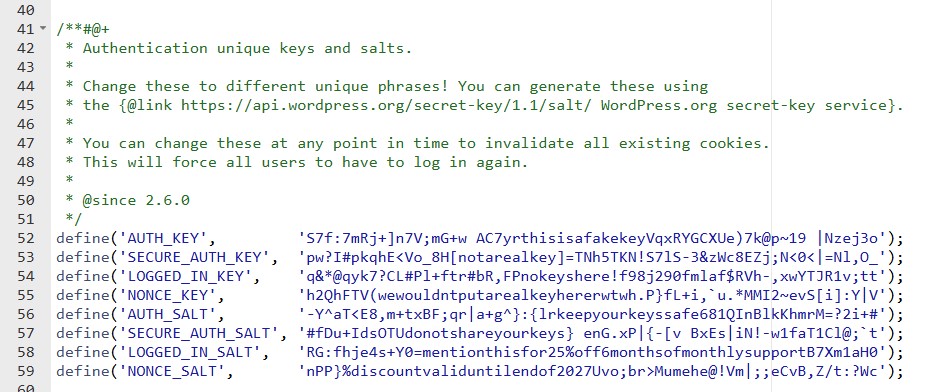
- Find the section for the security keys. This will likely be around like 52 to 59 but may differ based on your installs. You can see an example below:
- Next, visit the OFFICIAL WordPress SALT generator page here: https://api.wordpress.org/secret-key/1.1/salt/
- Copy the newly generated SALTs and then replace the original SALTs in your config file.
- Click "Save Changes" in the top right.
- Next, login to your WordPress website. How to login via cPanel.
- You will now need to reconnect any third party plugins along with our CDN if you are using it. Below are some popular items that will need to be reconnected:
- WooCommerce Plugins
- RankMath SEO Pro (Contact us)
- QUIC.Cloud CDN (Contact us)
- Pinwheel Worker (Contact us)
- Instagram Feed
- Jetpack
- Sucuri Security
- WP Ghost (Contact us)
- Themes
- Live chat and Analytics plugins
- After reconnecting, verify your site is working correctly. If you have any issues, please contact us.